


About The Author

About The Author
Over 90% of website owners cause a complete mess the first time they try to migrate WordPress site to new domain.
They:
If you’re wondering how to transfer WordPress site to new domain? You’re probably also not ready to execute the process without making costly mistakes, yet…
Moving WordPress site to a new domain is a delicate process. And years of hard work are on the line.
As the owner of the SEO agency in Chicago, I’ve helped hundreds of businesses transfer WordPress to another domain. Unfortunately, many come to us after a migration went wrong – usually because they skipped critical steps.
I’ve prepared an 8-step framework that will allow you to move your WordPress site to a new domain stress-free and:
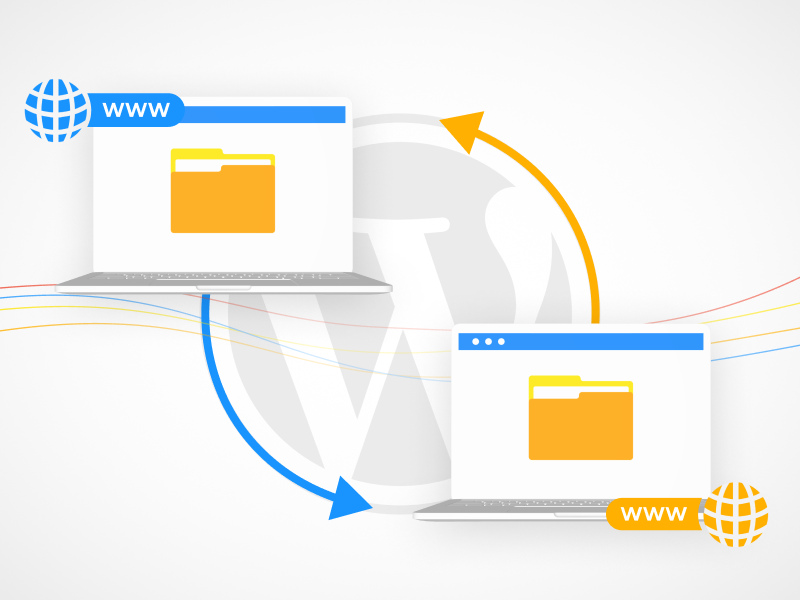
Rebranding, upgrading to a more memorable domain, expanding into new markets…
These can be exciting moments for your company.
However, none of those are strong enough reasons to rush the migration process and start it before gaining full clarity.
Many businesses start migration without taking the time to plan things out properly.
Outcome? They forget critical steps or perform them in the wrong order, leading to:
And to make things worse, some companies make a second sin of WordPress migration… They try to do too much at once.
If you change the web design, alter the URL structure, and switch to a new domain all at the same time? Google gets confused, and you lose rankings.
Rushing and trying to do too much at once are the quickest ways to turn an exciting change into a complete mess.
And it can be difficult to recover from a poorly executed transfer to new domain.
If you’re not 100% confident in what you’re doing, don’t attempt to migrate WordPress to new domain (unless you don’t care about the consequences).
The best way to migrate a WordPress site to a new domain is to break the process down into phrases.
Alpha Efficiency has been using this 8-step formula for over 15 years, with a 99.78% success rate (on 150+ projects).
If you follow each step, you’ll learn how to move a WordPress site to another domain with minimum risks.
Any attempt to migrate WordPress site to another domain involves risks.
Even if you’re 100% confident in your website content migration skills, backing up website files should be the first thing you do.
This way, you protect yourself from data loss. If things go wrong, you’ll be able to recover quickly.
There are three popular ways to backup your website:
No matter which method you choose, always double-check that your backup is complete before proceeding with the migration.
To transfer WordPress website to new domain, you’ll need to purchase the domain first. You can buy a domain through popular registrars like GoDaddy, Namecheap, or Google Domains.
Once you’ve secured your new domain, it’s important to verify ownership.
Usually, you’ll receive an email with instructions from the domain registrar you choose. They’ll usually ask you to add specific DNS records (TXT, CNAME) to your domain settings.
Next, sign up for Google Search Console and add your new domain. Google will provide a verification code, which you must add either through your DNS settings or upload an HTML file to your website. Once you do this, Google will verify your domain ownership.
Before you migrate WordPress site to new domain, you’ll need to set up a new SQL database.
This is where all of your site’s data (such as blog posts, pages, comments, and settings) will be stored once you transfer it.
Here’s how to set it up:
With your new SQL database set up, you’re now ready for the next steps in the migration.
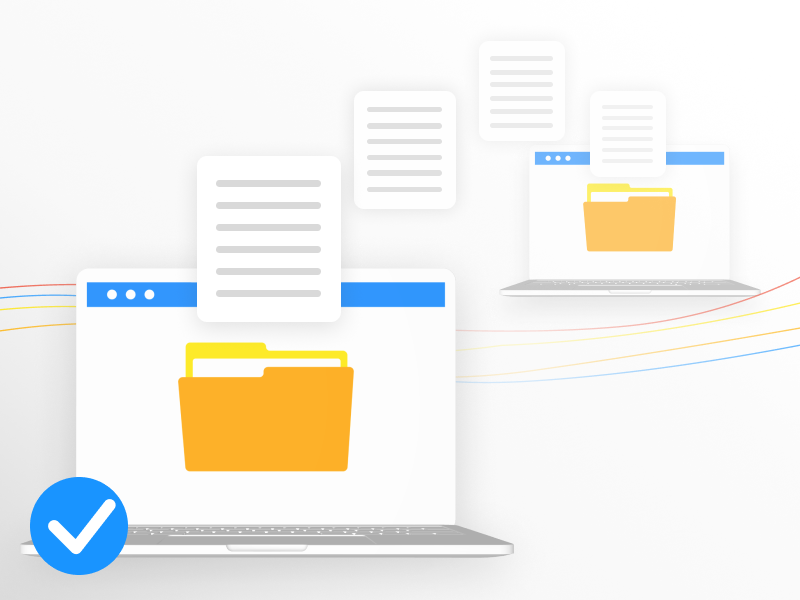
With your new domain and database ready, the next step is to transfer your WordPress files and database to the new domain.
This is done through phpMyAdmin and an FTP client.
Here’s how:
Your WordPress site is now ready to run on the new domain.
But there are still crucial steps you must complete to move WordPress site to new domain without losing SEO.
After migrating your WordPress site to a new domain, one crucial step remains: setting up 301 redirects.
If your old domain is still live but not pointing to your new domain, visitors and search engines will keep trying to access the old domain. This leads to 404 errors and broken user experiences, and it’s terrible for SEO.
301 redirects tell browsers and search engines that your site has moved permanently. When someone types your old domain or clicks a link pointing to the old URL, they’ll automatically land on your new domain instead of a 404 page.
There are two ways to set up 301 redirects:
If you prefer an easy, non-technical solution, a redirect plugin is your best option. Here’s how to do it:
If you have light coding skills, you can manually set up 301 redirects by editing your .htaccess file.
I usually recommend this method, as it gives you more control.
Here’s how to manually set up 301 redirects after you migrate WordPress site to new domain:
Next, it’s crucial to fix all internal links that still point to the old domain.
If you skip this step, search engines might struggle to crawl your new site properly.
By fixing broken links, you will keep your site’s structure intact and maintain the flow of link equity.
One of the easiest ways to identify and fix broken internal links is by using a plugin like Better Search Replace.
However, you can also update all your links manually. If your site is big, or you’ve tried to transfer WordPress blog to new domain, there’s a risk that you might fail to spot all broken links.
Do a thorough check to ensure everything is working as it should.
Here’s how:

After you’re 100% sure that you successfully moved your WordPress site to a new domain, it’s time to inform search engines about the change.
This ensures that your new domain is recognized and indexed correctly and that your SEO rankings remain intact.
Here’s how to do it:
Google Search Console is your direct line to Google, so it’s essential to notify them of your domain change:
While Google is the largest search engine, don’t forget about others like Bing and Yahoo. You can submit your new domain to their webmaster tools (such as Bing Webmaster Tools) to ensure they also register the domain change.
Your XML sitemap shows search engines how your site is structured. After your migration:
After submitting your new domain, keep an eye on your crawl reports in Google Search Console. These reports will help you catch any issues related to redirects, broken links, or indexing problems that could affect your site’s visibility.
Also, take advantage of Google Analytics 4 benefits and monitor your website’s performance in the upcoming weeks.
Don’t want to leave anything to chance when it comes to your WordPress migration?
At Alpha Efficiency, we’ve successfully completed 150+ WordPress migrations. My team and I can help you secure a stress-free process of moving your WordPress site to another domain.
You can expect:
Book a consultation, and we’ll assess your website and find the friction-free path to migrate it to your desired domain.

Recent Post
Brian Dordevic
The $100B SEO: Advanced Keyword Research Techniques for 2026
READ MORE
Brian Dordevic
Your Review Strategy Is a Ticking Time Bomb
READ MORE
Brian Dordevic
The 61% Collapse: How AI Overviews Broke Google’s Click Economy
READ MORE